
Document Watermark Examples: Visual and Technical Templates
Explore diverse document watermark examples, from text to logos, and learn how to effectively protect and brand your documents.
August 26, 2026 · 9 min read

Document watermarks fall into six working categories: text, logo, tiled or pattern, status labels, dynamic user IDs, and invisible or steganographic marks. Founders, photographers, and consultants add them for three reasons that rarely overlap: branding a document as theirs, flagging its status (draft, confidential, expired), or tracking who has a copy if it leaks.
What follows are visual examples you can copy, numeric settings that actually get used in practice, and one real-world case where a visible watermark got paired with tracking data instead of standing alone.
- Text watermarks: names, dates, or a single line of contact info
- Logo watermarks: a transparent brand mark placed low-opacity
- Tiled patterns: repeating diagonal text across the full page
- Status labels: “DRAFT,” “CONFIDENTIAL,” “DO NOT DISTRIBUTE”
- Dynamic user IDs: a viewer’s email or name baked in at download time
- Invisible marks: steganographic data embedded for forensic tracing
Key Takeaways
Effective document watermarking matches the mark type and opacity to the use case, and pairs identifying, dynamic marks with access tracking whenever a document carries real stakes.
| Point | Details |
|---|---|
| Match opacity to use case | Use 15–25% for portfolios, 30–45% for client proofs, 40–60% tiled for stock previews. |
| Choose static or dynamic deliberately | Static suits single-audience files; dynamic inserts viewer-specific data for multi-recipient documents. |
| Tile over corner-only placement | Diagonal tiled patterns resist cropping and automated removal better than a single corner mark. |
| Pair visible marks with tracking | Combine identifying watermarks with controlled share links and download analytics for high-stakes documents. |
| Keep a clean master copy | Store the unwatermarked original separately and export watermarked files at full resolution. |
Table of Contents
- Document Watermark Examples by Type and Use Case
- Static vs Dynamic Watermarking: Which One Fits Your Document?
- Watermark Best Practices for Opacity, Placement, and Sizing
- Which Tools Actually Apply These Watermarks?
- A Real Example: Measured Watermarks Paired With Engagement Data
- The Overrated Advice on Watermarks (and What Actually Works)
- Sources
Document Watermark Examples by Type and Use Case
1. Text watermark. A single line like “Confidential — Prepared for Acme Capital, March 2026” placed bottom-right works well on financial memos and legal drafts. For portfolios, keep opacity low; for client proofs headed to people who might crop or screenshot them, use a more visible and centered watermark. Lower opacity looks polished. Higher opacity survives a phone photo of the screen.
2. Logo watermark. Use a transparent PNG sized modestly relative to page width, placed in a corner or centered behind body text. Use lower opacity levels to keep the brand visible without distracting the reader. This is the version most agencies use on proposal decks, since it reinforces the sender without shouting “don’t steal this.”
3. Tiled or pattern watermark. Repeat a short text string diagonally across the entire page at consistent spacing, typically every 150 to 250 pixels depending on document size. Opacity in the 20 to 40% range balances visibility against readability for proofs and stock previews. Photographers and stock agencies lean on this pattern specifically because AI-driven removal tools struggle more with marks that overlap detailed content than with a single clean stamp in one corner.

4. Centered overlay or heavy diagonal. For maximum deterrence on client proofs or unreleased previews, run a bold diagonal watermark straight through the center of the page. It’s ugly on purpose. Nobody presents this version; it exists purely to protect the file until the final is delivered.
5. Border watermark. A thin repeated pattern around the page edge looks clean but offers weak protection since a simple crop removes it entirely. Use this style for internal drafts rather than for widely circulated documents.
**6. Set it to auto-apply based on document status if your tool supports conditional logic, so nobody forgets to strip it before the final send.
7. Invisible or steganographic watermarks. These embed identifying data into the file structure itself, invisible to the eye but recoverable with the right tool. They’re a forensic backstop, best paired with a visible mark rather than used alone, since an invisible-only watermark does nothing to discourage casual screenshotting.
Static vs Dynamic Watermarking: Which One Fits Your Document?
Static watermarking bakes a fixed mark into the file at the point of export. It’s adequate for anything with one intended audience: a portfolio piece, a public-facing PDF, a template you send to everyone the same way. Set it once and export.
Dynamic watermarking works differently. Rather than one fixed mark, a rules-based template generates a fresh watermark each time someone views or downloads the file, pulling variable fields like the viewer’s name, email, and the timestamp of access. Two people downloading the same PDF get two visibly different copies.
That distinction matters most when a document has many recipients and any one of them might forward it somewhere it shouldn’t go.
- Static: one file, one mark, applied at export
- Dynamic: rules and templates, applied per view or per download
- Variable-data fields worth including: viewer email, name, and access date/time
- Server-side tools typically expose these as parameters (text, rotation, opacity, density) rather than requiring custom code per document
Pro Tip: If you’re deciding between the two, ask who the recipient list is. One buyer, one investor, one client? Static is fine. A list of twenty investors you don’t fully trust? Dynamic, user-identifying watermarks turn a leak into a solved mystery instead of a guessing game.
Invisible watermarks work well as a complementary layer here too. Add one underneath a dynamic visible mark and you get both a social deterrent (people see their own name on the page) and a forensic one (you can trace a copy even if someone crops the visible part out).
Watermark Best Practices for Opacity, Placement, and Sizing
Match opacity to purpose rather than aesthetics alone. Portfolios run 15 to 25% opacity in a corner; client proofs run 30 to 45% centered or tiled; stock previews push to 40 to 60% tiled, because stock images face the highest theft risk of any document type.
- Fonts: clean sans-serif, avoid decorative typefaces that blur at low opacity
- Logos: transparent PNG, sized to 5 to 15% of page or image width
- Placement: overlap important content, not just the corner. A watermark that only sits in a corner is trivially cropped out
- Tiling: repeat every 150 to 250 pixels, rotated 30 to 45 degrees, to resist both cropping and automated removal
- Workflow: always keep an unwatermarked master file stored separately, and export watermarked copies at full resolution so the mark doesn’t pixelate
Placement matters more than most people assume. A watermark sitting only in the bottom corner takes one crop to remove. One that crosses through the actual content, whether a chart, a photo, or a paragraph, takes real editing work to strip, which is precisely why tiled diagonal patterns have become the default recommendation as removal tools get better.
Copy-Ready Watermark Templates
- Status label: “CONFIDENTIAL — DRAFT,” 72pt, 30% opacity, 45 degree rotation, repeated on every page.
- Brand line: “© 2026 Your Name | yoursite.com,” 10pt, bottom-right, 20% opacity, single instance per page.
- Variable-data tag: “Prepared for [Viewer Name] — [Access Date],” inserted at download time; keep the field list minimal since embedding a full email address raises privacy questions if the document ever gets forwarded internally at the recipient’s company.
- Tiled pattern starter: rotate text 30 degrees, space repeats every 200 pixels, opacity 25%.
These four cover most real requests: brand a document, flag its status, or trace who has it.
Which Tools Actually Apply These Watermarks?
Acrobat and Word both handle static text or image watermarks through their built-in watermark menus, with settings for rotation, opacity, and repeat-on-all-pages. Google Docs requires inserting a background image manually, which works but takes more steps to get opacity right.
For batch work, browser-based tools and desktop batch apps can process folders of files at once. Watch export quality settings closely; a watermark applied at low resolution looks fine on screen and blotchy in print.
Developer and server-side workflows go further. A scheduled function can pull a PDF from storage, apply watermark parameters like text, rotation, opacity, and tiling density from a JSON template, and write the finished file to a separate path, which is how most dynamic, per-user watermarking actually runs in production.
- Manual: Acrobat or Word menus for one-off documents
- Batch: browser tools or desktop apps for folders of files
- Developer: template plus rules engine for per-user, dynamic marks
- For confidential decks specifically, pair a measured watermark with restricted share links and keep the clean original private, never sent
That last point applies directly to fundraising documents. A pitch deck sent as a plain PDF offers zero visibility into who actually opened it, which is a different problem than watermarking alone solves. Approval-heavy workflows in other fields face the same gap: content sign-off processes run into the same ambiguity when a stakeholder goes quiet, and a recipient-identifying mark on the file at least narrows down who saw what.
A Real Example: Measured Watermarks Paired With Engagement Data
A measured watermark differs from a plain static mark by carrying data tied to the specific download event, not just a fixed logo or line of text. BabyLoveRaise applies this pattern to pitch deck downloads: each watermarked copy is tied to a specific share event, layered on top of per-slide engagement tracking that shows which investors opened the deck, how far they read, and where attention dropped off.
- Three registers of share links: first send, forwardable, and private
- Per-slide analytics that separate “never opened it” from “read it and passed”
- Measured watermarks available on downloads, not just view-only access
The two silences that look identical to most founders, a deck nobody opened and a deck someone read cover to cover before going quiet, are actually two different signals. A watermark tells you who has the file. Engagement data tells you what they did with it.
For a raise specifically, combine an identifying watermark with a controlled link and slide-level data, then send follow-ups only to people who actually finished reading.
The Overrated Advice on Watermarks (and What Actually Works)
Most guides treat watermarking as a design decision: pick a font, set the opacity, done. That’s incomplete. A watermark alone tells a reader “don’t steal this” but tells you, the sender, nothing about what happened to your document after you hit send.
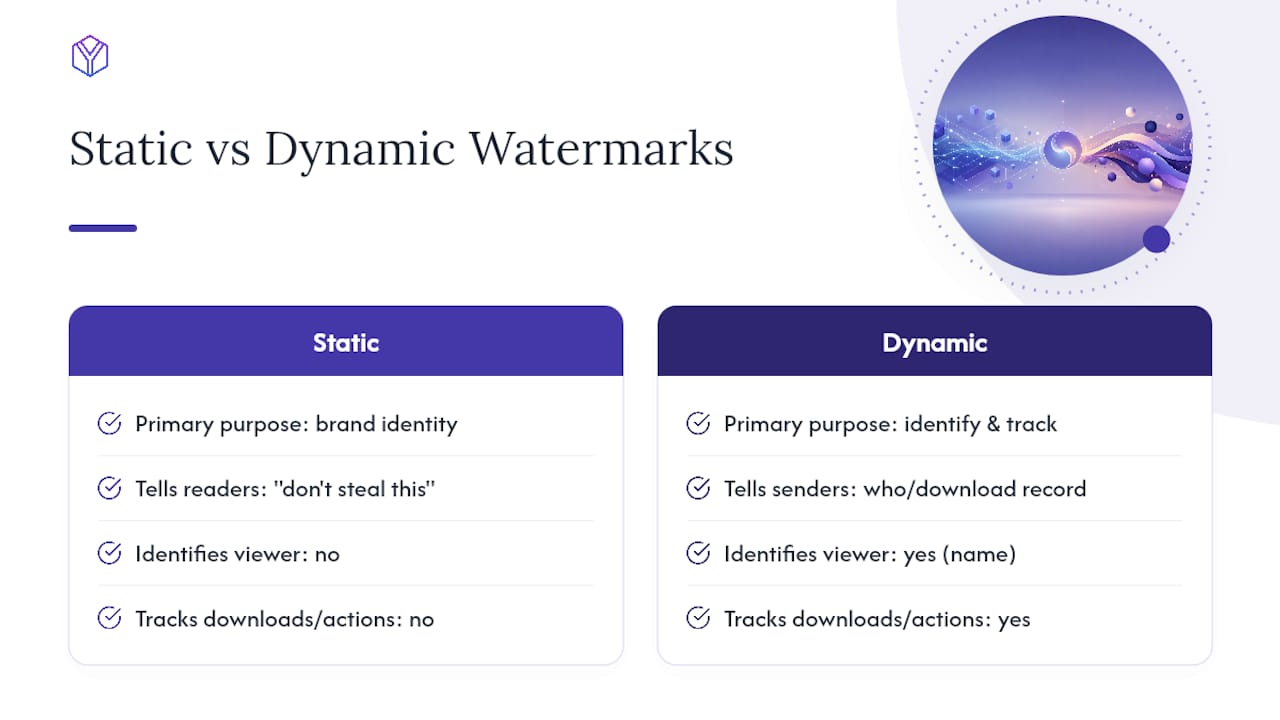
The bigger miss is treating static and dynamic watermarking as interchangeable. They solve different problems. A static logo watermark protects your brand identity on a public-facing case study. It does nothing to help you figure out who forwarded your confidential fundraising deck to a competitor. For that, you need a mark tied to the specific person and the specific download, plus a record of what they did with the file afterward.
If you’re sharing anything with real stakes, a term sheet, an unreleased financial model, a pitch deck, prioritize the identifying and tracking layer over the visual polish. A slightly ugly watermark that includes a viewer’s name beats a beautiful logo that protects nothing but your aesthetic pride.
— Paul
Sources
- The Complete Guide to Image Watermarking: Protect Your Work in 2026 | Konvrt
- Managing PDF watermarking (Oracle WebCenter Content) — PDF Watermarking documentation